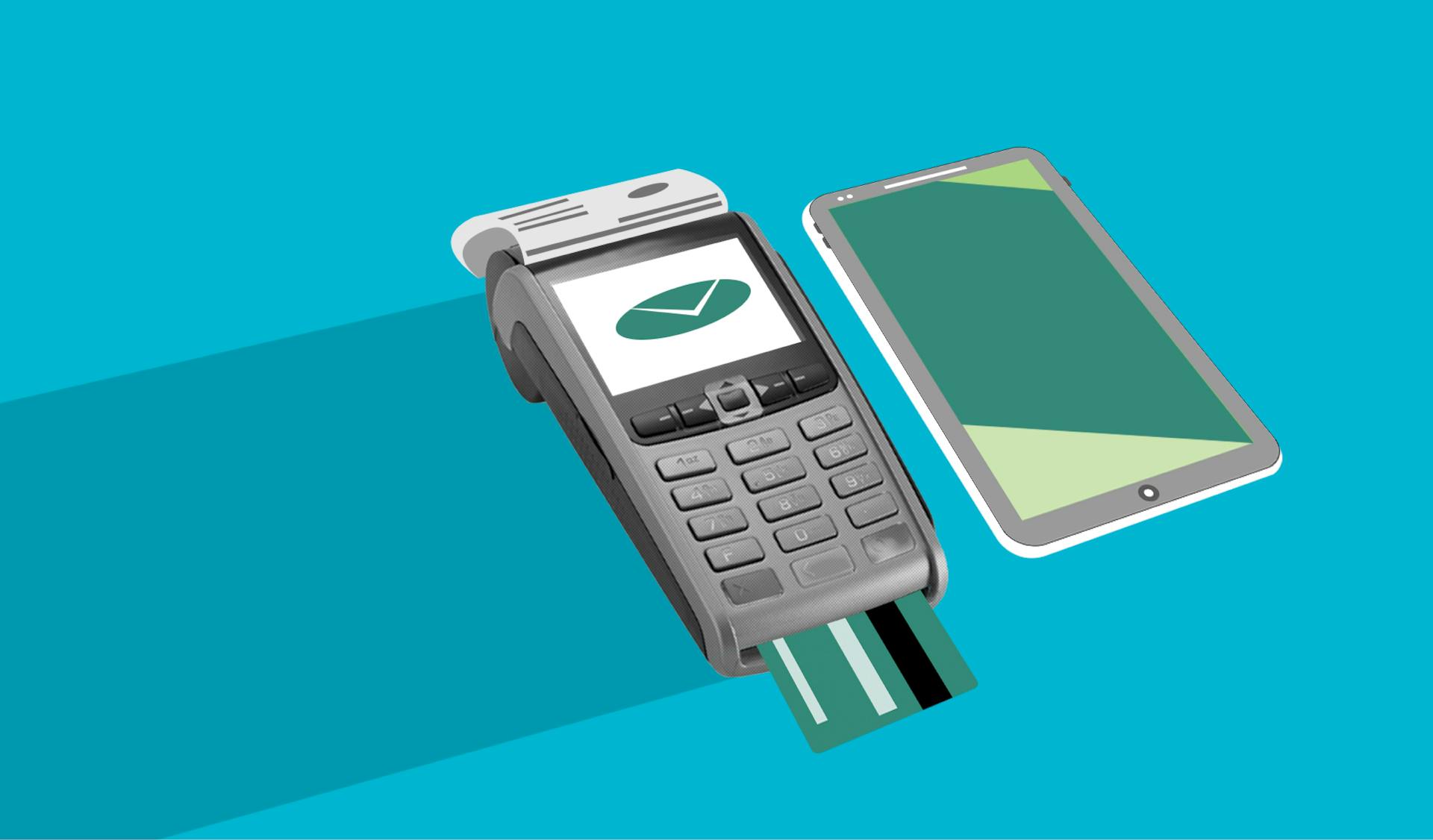
Setting up the Squarespace POS system is a straightforward process that can be completed in a few steps. First, you'll need to create a Squarespace account and add a new point of sale (POS) location.
To get started, you'll need to download the Squarespace POS app from the App Store or Google Play Store. This app will serve as the central hub for managing your POS system.
Once you've downloaded the app, you can start configuring your POS settings, including setting up your products, taxes, and payment options. You can also customize your POS layout to fit your business's specific needs.
Squarespace POS offers a range of features to help streamline your sales process, including the ability to process credit card payments and manage inventory.
You might like: Squarespace Tap to Pay
If this caught your attention, see: Mini Pos System
Eligibility
To use Squarespace's point of sale system, you'll need to meet certain eligibility requirements.
You must sell physical or service products in the US. This system is designed for businesses that offer tangible goods or services to customers within the country.
To qualify, you'll need to be on one of the following Squarespace plans: Basic, Core, Plus, Advanced, Commerce Basic, or Commerce Advanced. Check out Squarespace's plan comparison to learn more about which one suits your needs.
You'll also need to have site owner or administrator permissions to set up and manage the point of sale system. This ensures you have the necessary control to customize and optimize your sales experience.
To process transactions, you'll need a Square account, which is a requirement for using the point of sale system. This account will help you manage your sales, track your inventory, and more.
You'll also need a Square Reader for magstripe, contactless, and chip transactions. This device will enable you to accept a variety of payment methods and make sales a breeze.
To get started, ensure you have a compatible device: an iPhone, iPad with the Squarespace app version 1.48.0 or higher, or a Squarespace app version 1.69.0 or higher on Android. This will guarantee a smooth and seamless experience when using the point of sale system.
View Sales Analytics
Viewing sales analytics is a crucial aspect of managing your Squarespace POS system. You can review point of sale analytics and compare in-person sales to online sales.
To get started, open the Analytics panel and click on Sales. This will give you access to your sales data. Data is available starting from January 2014, so you can track your sales over time.
You can filter your results by time frame by clicking on the date range drop-down menu at the top of the panel. This will allow you to see sales data for specific periods. For example, you can see sales for the current month, the past quarter, or even the entire year.
To view sales by channel, click on the sales channel drop-down and select POS. This will show you sales data specifically for in-person transactions.
Readers also liked: Pos System down
Setting Up Square
To set up Square, start by tapping the settings icon in the top-right corner of your point of sale screen. From there, tap Payment and then Connect Square account, entering your Square credentials and allowing the necessary permissions.
Readers also liked: What Is Square Payment System
You can also connect Square in your Payments settings on a computer by tapping the account on the payment settings screen and then tapping Disconnect account to remove the connection if needed.
To integrate Square with Squarespace, navigate to your Squarespace dashboard, go to the Commerce section, and select “Point of Sale” to follow the instructions to connect your Square account to your Squarespace store.
Connect Square Account
To connect your Square account, head to the point of sale on your device and tap the settings icon in the top-right corner. From there, tap Payment, then Connect Square account. You'll be prompted to enter your Square credentials and allow the necessary permissions.
You can also connect your Square account on a computer by navigating to your Payments settings. To disconnect the Square account, simply tap the account on the payment settings screen and select Disconnect account.
To connect your Square account through Squarespace, navigate to your Squarespace dashboard, go to the Commerce section, and select Point of Sale. Then, follow the instructions to connect your Square account to your Squarespace store.
Check this out: In-Car Payment System
Here's a step-by-step guide to connecting your Square account:
1. Tap the settings icon in the top-right corner of the point of sale.
2. Tap Payment, then Connect Square account.
3. Enter your Square credentials and allow the necessary permissions.
4. To disconnect the Square account, tap the account on the payment settings screen and select Disconnect account.
Note: You can also connect your Square account on a computer by navigating to your Payments settings.
Readers also liked: Faster Payment System
Check Card Reader Connection
To set up your card reader connection, you'll want to check the settings in your point of sale. Tap the settings icon in the top-right corner.
You can find the payment settings by tapping Payment in the menu. From there, tap Square account and then Card readers. This will show you a list of connected readers and their status.
Connected readers display a Ready status, so you'll know they're good to go. To connect a magstripe reader, simply plug it into your headphone jack.
A unique perspective: Credit Card Pos Systems
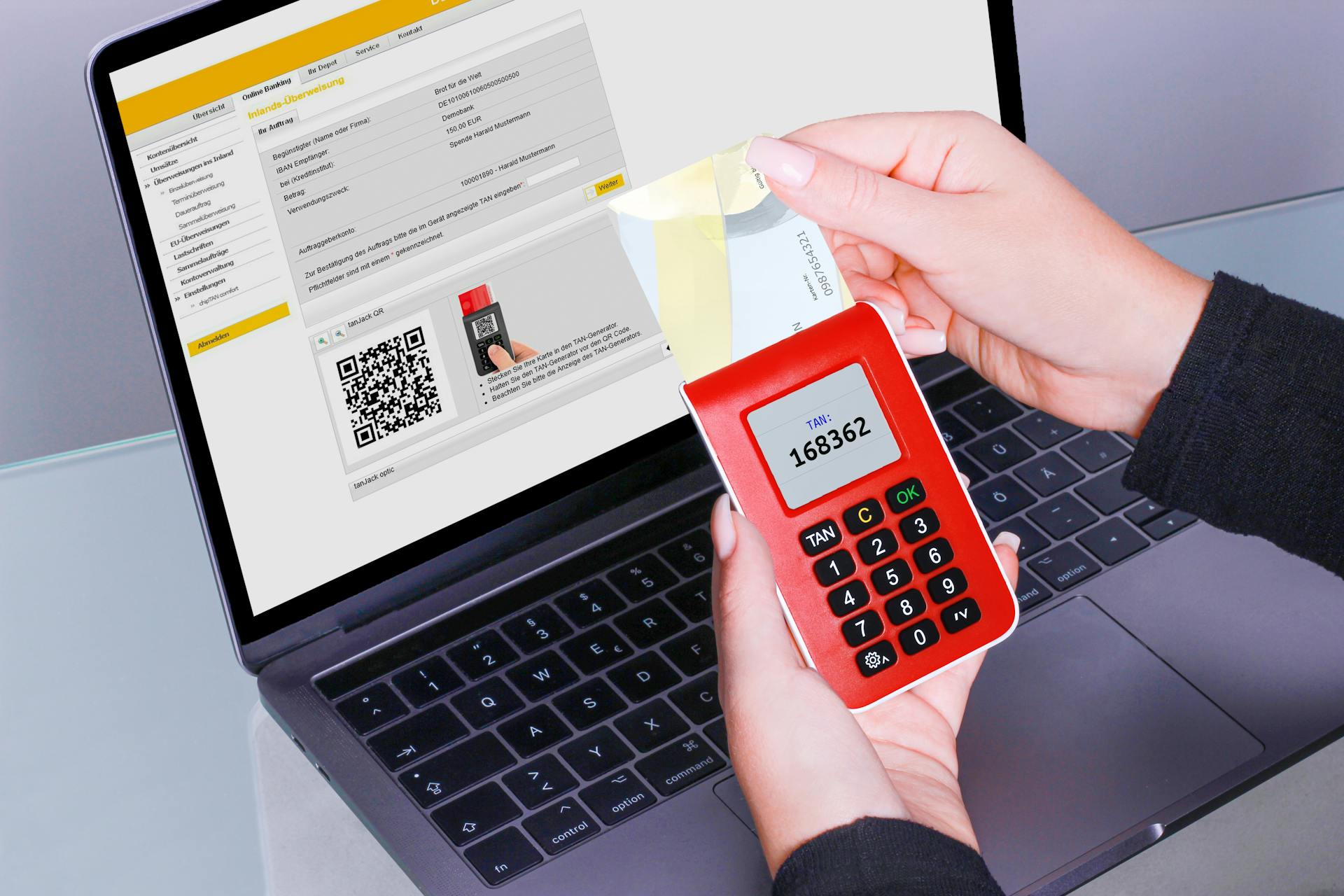
To connect a Bluetooth reader for contactless and chip transactions, tap Connect a reader and follow the steps on the screen.
Here's a quick checklist to help you verify your card reader connection:
- Tap settings in the top-right corner.
- Tap Payment, then Square account, then Card readers.
- Connected readers should display a Ready status.
- For magstripe readers, plug into your headphone jack.
- For Bluetooth readers, tap Connect a reader and follow the steps.
This should get you up and running with your card reader connection. Return to the products screen to start selling once you've verified your connection.
POS System Features
The Squarespace POS system is designed to help small businesses manage their operations more efficiently. This platform keeps inventory, customer data, and analytics up to date with your online store.
With the Squarespace POS, you can fully integrate your digital and physical spaces, which is especially useful for businesses that operate in both worlds. This integration makes it easier for small business owners to manage their operations on their own.
The Squarespace POS requires a key piece of hardware to make this possible, which is why the company entered into a partnership with Square. This partnership is crucial for the full functionality of the Squarespace POS system.
Inventory Management
Inventory Management is a crucial aspect of running a successful online store. To avoid overselling products, it's essential to synchronize your inventory levels between your Square POS system and Squarespace website.
Linking Square with Squarespace can help achieve this synchronization, ensuring your online store's stock levels match those in your Square POS system. This can be done regularly to maintain accuracy.
Seamless inventory synchronization is a standout feature of the Square POS and Squarespace integration, facilitated by SKUPlugs. This enables real-time updates between the Square POS system and Squarespace website.
The risk of overselling and discrepancies is eradicated with this feature, providing a reliable shopping experience for customers. This is especially important for businesses with a large online presence.
Managing product listings becomes a breeze with SKUPlugs, as changes made in the Square POS system automatically reflect in the Squarespace website. This eliminates the need for manual intervention, saving time and minimizing inconsistencies.
Discover more: Online Pos Software
With accurate inventory information, businesses can make informed decisions about restocking their supply and moving items to the discount bin. This helps to maintain a cohesive product catalog across both platforms.
Inventory control is key to properly managing your retail business. The Squarespace Commerce platform updates your inventory levels with every single purchase, giving you a clear picture of your overall inventory.
Customer Management
With the Square POS and Squarespace integration, you can keep customer data up-to-date across both systems, whether they make a purchase in-store or online.
This means their information is consistently updated, allowing you to personalize marketing efforts and provide targeted promotions.
By syncing customer data, you can foster a more connected relationship with your clientele, which is essential for building a loyal customer base.
The integration of Square POS and Squarespace through SKUPlugs enables businesses to manage customer data efficiently, expediting order fulfillment processes and maintaining accurate inventory information.
This streamlined approach to customer management helps businesses optimize online retail operations and create a seamless shopping experience for their customers.
If this caught your attention, see: Insurance Information and Enforcement System
Payment Options
You can pay for products in installments with zero percent interest using Afterpay or Clearpay. This payment method is available if you've connected Stripe or Squarespace Payments as a payment solution.
To enable Afterpay or Clearpay, you'll need to meet the eligibility requirements. You can do this by connecting the necessary payment solution.
You can pay for products in installments with zero percent interest using Afterpay or Clearpay. This payment method is a great option for customers who want to break up the cost of a purchase into smaller, more manageable chunks.
Recommended read: What Is the Solution to the System of Equations Below?
Integrate with Square
To connect a Square account, you'll need to tap the settings icon in the top-right corner of the point of sale screen, then tap Payment and finally Connect Square account.
You can also connect Square on a computer by navigating to your Payments settings and following the prompts.
To disconnect the Square account, simply tap the account on the payment settings screen and select Disconnect account.
If you're using Squarespace, you can natively integrate it with Square by following these steps:
- Navigate to your Squarespace dashboard
- Go to the Commerce section
- Select “Point of Sale” and follow the instructions to connect your Square account to your Squarespace store
Transaction Fees
Transaction fees can be a significant cost for businesses. Square and Squarespace both charge transaction fees, so it's essential to review these fees to understand the cost implications for your business. Square's transaction fees can vary depending on the payment method and location. Squarespace's fees are generally lower than Square's, but it's still crucial to review them carefully.
Payment Discrepancies
Payment discrepancies can arise between Square and Squarespace transaction reports. Regularly reconciling these reports ensures your financial records are accurate.
Reconciling payment reports helps identify discrepancies, which can be caused by various factors, including timing differences between Square and Squarespace's reporting cycles.
To resolve discrepancies, review your Square and Squarespace transaction reports side by side, checking for any missing or duplicate transactions.
Afterpay or Clearpay
If you're looking for a flexible payment option, Afterpay and Clearpay are great choices. With Afterpay and Clearpay, customers can pay for products in installments with zero percent interest.
To use Afterpay or Clearpay, you'll need to have connected Stripe or Squarespace Payments as a payment solution. This is a requirement for enabling these payment methods.
Afterpay and Clearpay can be enabled on your store if you meet the eligibility requirements.
Squarespace POS
The Squarespace POS is a game-changer for small business owners. It's the next evolution of Squarespace's commerce offering, designed to help businesses manage their operations more efficiently.
With this platform, you can keep your inventory, customer data, and analytics up to date with your online store, making it easier to manage both your digital and physical presence.
Squarespace is a DIY website builder, and the addition of the POS system is a push towards creating an all-in-one platform for small businesses.
To make this possible, a key piece of hardware is required, which is why Squarespace partnered with Square.
The All-Inclusive Platform offers a seamless experience for managing your store and accepting payments.
Frequently Asked Questions
What is the difference between Squarespace and Square POS?
For in-person sales, Square POS is a better choice than Squarespace due to its dedicated point of sale (POS) system. If you prioritize in-person transactions, Square POS is a more suitable option.
Featured Images: pexels.com